Active Directory Dreams
The year was 2016 and it all started with a dream. I had the desire to learn more about servers, networking, and programming.
Living at my parents house as a recent Help Desk hire, so many of my problems at work revolved around
Active Directory (AD). AD was something fully abstracted away in my Help Desk role, but I wanted to understand why
gpudate /force would resolve so many configuration issues. How could I test Active Directory in a total test environment?
I already had a gaming PC with VirtualBox and ample ram (32 GiB).
I'll install AD at home! I started my journey watching this awesome introductory video by Eli the Computer Guy. After some more research I had a plan in place: I wanted a Domain Controller at home that ran AD, DNS, and DHCP services. I went to the drawing board and first started looking at the family's router for configuration.
The first problem has already arisen. How can I make these infrastructure changes without any impact to the current network? DHCP and DNS services are all controlled by the simple home mesh gateway. Even if I got all these services running on my desktop PC, the uptime of my gaming PC is not enough to prevent service impacts, especially regarding DHCP. This would not meet Family Acceptance Factor (FAF) requirements.
The Gateway to Wonderland
After talking through my homelab desires with one of my colleagues at the time he recommended pfSense - the solution was identified!

pfSense is a router/firewall operating system that is commonly used by SOHO (Small Office / Home Office) deployments, and also works great as a virtual machine.
The plan was in place - down the rabbit hole we go:
- Segment/Subnet a new network to test without impacting the parent network (This was the goal - I would learn later the following subtasks were required)
- Virtualize a pfSense gateway bridging my gaming desktop NIC as a psuedo-WAN interface for the pfSense VM
- Utilize virtual NIC #2 as the LAN interface as an customized internal VirtualBox network
- Install Windows Server (AD, DHCP, DNS) and Windows Clients onto the new network
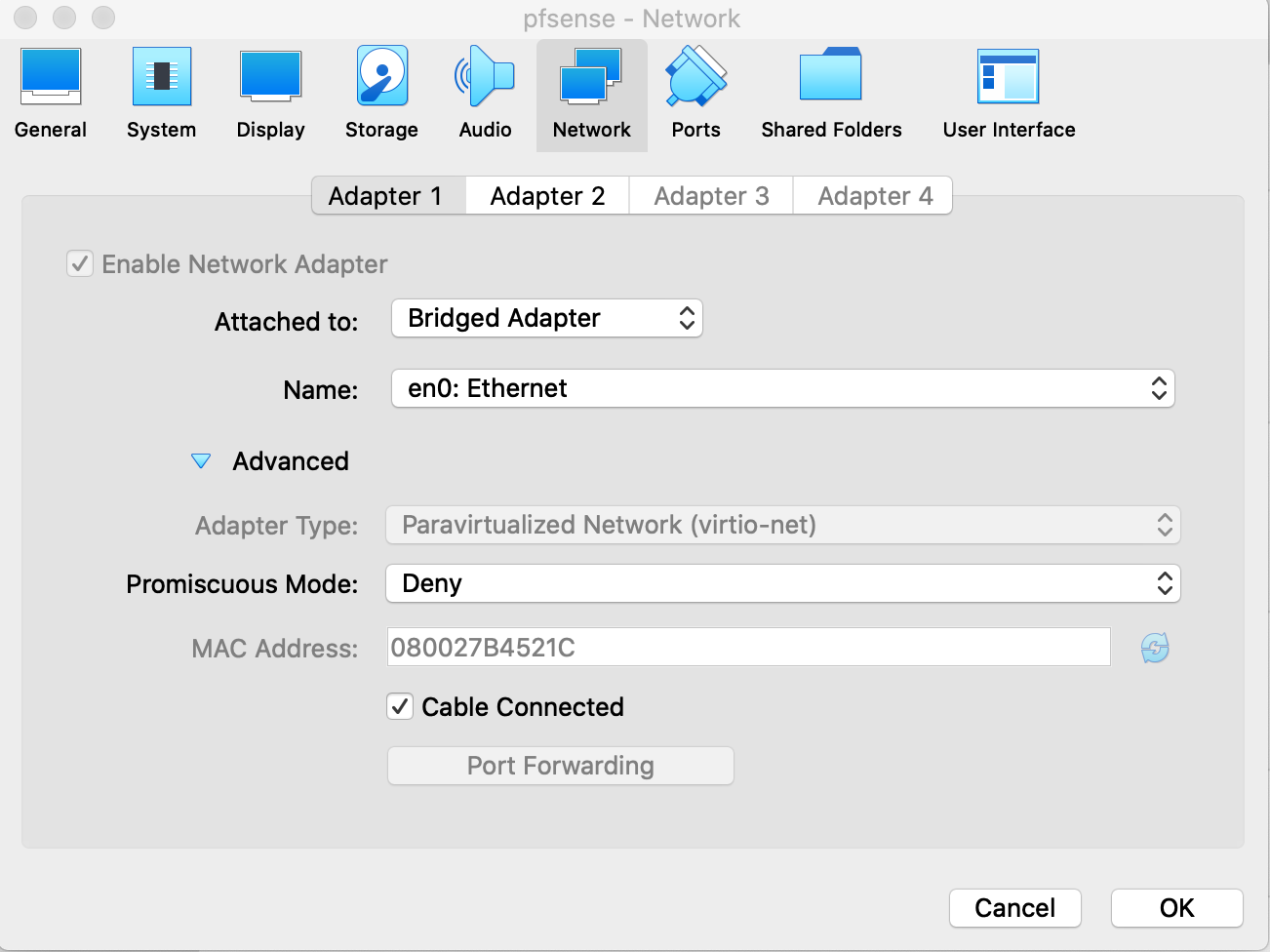
First things first, assuming that VirtualBox is already installed. You will need the amd64 ISO for pfSense to install on an "Other Linux" VM. This VM needs custom networking with at least 2 network adapaters - below are screenshots of working configuration of the WAN and LAN interfaces
WAN
LAN
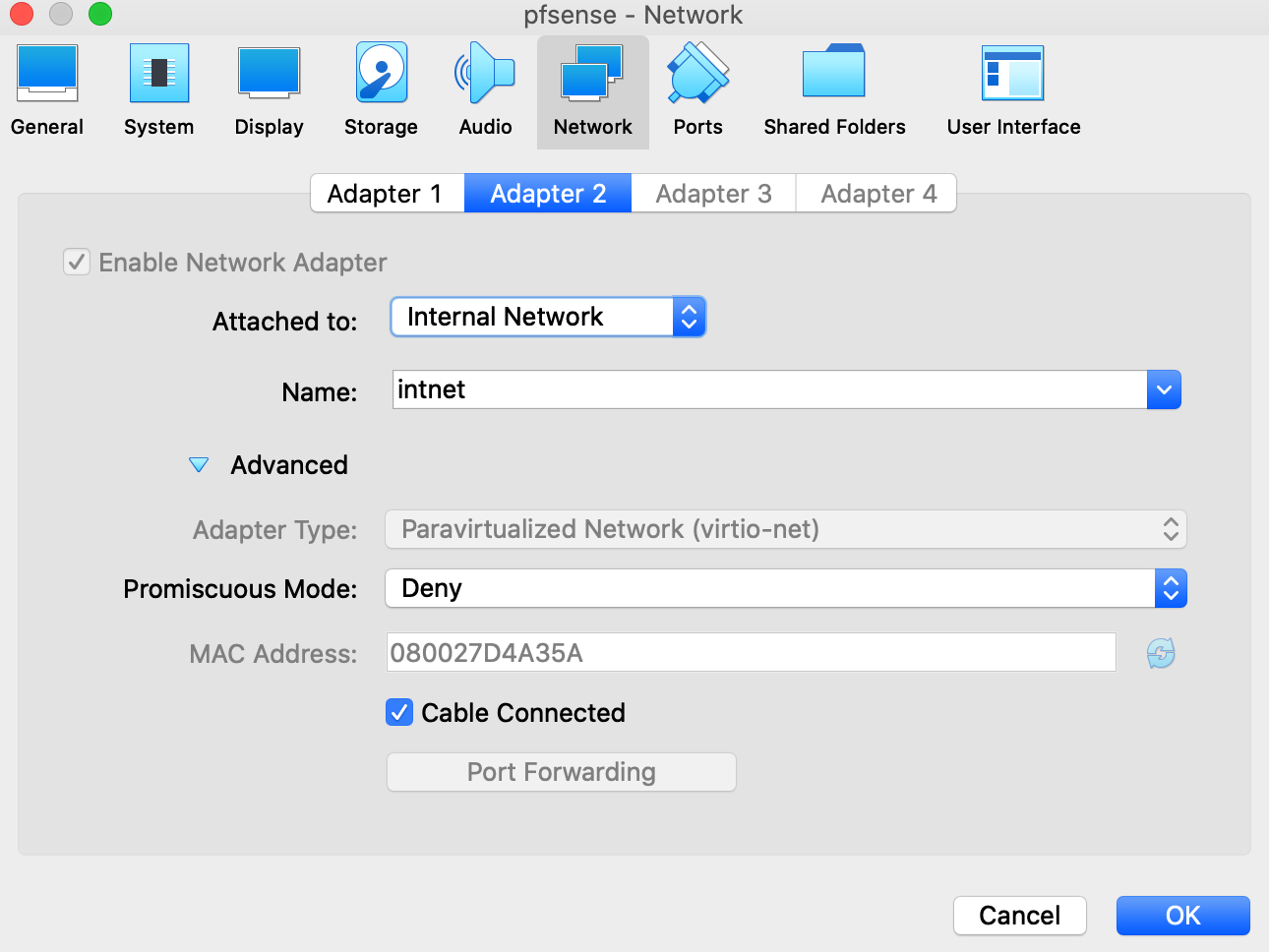
Take note of the bridged WAN interface, this will use your Desktop's ethernet adapter to mimic another computer on the network. I also had to utilize the paravirtual network adapters to get things working correctly for this demo. Here is the example configuration where DHCP is enabled on the LAN interface:
*** Welcome to pfSense 2.4.5-RELEASE-p1 (amd64) on pfSense ***

 WAN (wan)       -> vtnet0     -> v4/DHCP4: 192.168.1.183/24
 LAN (lan)       -> vtnet1     -> v4: 10.254.0.1/24
Now any VMs that are given an internal network network adapter will automatically pick up an IP on the DHCP network 10.254.0.1/24 I now had my own slice of sky to toy with AD and much more. I am intentionally leaving out details about how to get Windows Server up and running, because there are many guides that will be much better. I will however note that Windows offers a 180-day free trial for on-premises deployments In later posts I will plan to talk about how my homelab grew into a Linux environment.